International
 Finland
 Bangladesh

What Is a Golden Image
A Golden Image is essentially a standard pre-configured template of an operating system, applications, and settings that are used as a uniform baseline for spinning up virtual machines or instances in Azure, AWS, or Google’s cloud platform. It could be imagined as a master plan containing all the elements that will allow the launch of a fully operating system with minimal additional configurations.
Besides, it had a function in traditional IT environments to ensure the uniformity of desktops across the deployments, and now in the age of cloud computing, it has been transformed into a key part of infrastructure automation and scalability.
Why Golden Images Matter
The significance of Golden Images in today’s cloud infrastructure is immense. They provide numerous benefits that directly impact operational efficiency, security, and cost management.
1. Consistency and Management
Because each virtual machine will be identical once it has been launched using your golden image, you have eliminated potential configuration errors or the “it worked on my machine” issues. As such, you will be able to maintain predictable application behavior for all of your development, testing and production environments.
2. Rapid Deployment and Scalability
Rather than wasting minutes or hours to install and configure software on new instances, you can now simply launch pre-configured instances in a matter of seconds. Such rapid deployment capabilities are critical for responding to traffic increases quickly through auto-scaling techniques.
3. Security and Compliance
By including security patches, secure configurations and compliance requirements within your golden image, you are ensuring that every new instance begins with the proper level of security. This method is significantly better than relying upon automated scripts to ensure security after an instance has been created.
4. Cost Optimization
More rapid instance boot-up times means less time wasted by employees being productive, and ultimately less money spent by companies, particularly those who are creating many short-lived instances for their customers. In addition, you can reduce the amount of scripting time required to get an instance up and running, which consumes compute time.
5. Disaster Recovery
Your golden images represent a known good state of configuration that you can use to rapidly restore service when disaster strikes, providing a stable reference point that you know will function properly.
What Should Be Included in Your Golden Image?
In general, your golden image should include several elements to make your new instances as production-ready as possible.
1. Base Operating System
First and foremost, the base of your golden image should include a base operating system that is completely patched and hardened. It’s recommended that you always begin with official Amazon Machine Images (AMIs) or verified vendor AMIs as your base OS; this is because they receive regular security patches.
2. Runtime Environments and Dependencies
Install runtime environments (e.g., Python, Node.js, Java, .Net) and other dependencies that are necessary for your application to run properly. This ensures that the time-consuming process of installing them at launch will be avoided.
3. Logging and Audit Configurations
Configure logging and auditing mechanisms for your application to monitor its performance and troubleshoot any issues that arise.
4. Application Code and Binaries
While opinions vary, many organizations include stable system components and dependencies in the image while deploying application code separately through CI/CD pipelines. This provides fast launches while maintaining deployment flexibility.
5. Security Configurations
Essential security elements include:
- Firewall rules and security policies
- SELinux/AppArmor configurations
- SSL certificates
- Security monitoring agents
- Logging and audit configurations
- IMDSv2 (Instance Metadata Service v2) enabled
6. Security Critical: Always ensure IMDSv2 is enabled on your AMIs to protect against SSRF vulnerabilities and improve instance metadata security.
7. Monitoring and Management Agents
Pre-install and configure:
- AWS CloudWatch agents
- AWS Systems Manager (SSM) agents
- AWS CodeDeploy agents
- Third-party monitoring tools
- Log shipping agents
Creating a Golden Image
The process of creating a golden image involves careful planning and execution.
Step 1: Launch a Base Instance
Start from a default AMI provided by AWS or using a former golden image. Select a compatible instance type for your build method.
Step 2: Configure and Customize
Do all the configuration needed:
- Install package and application
- Configure daemon/services
- Apply security patch
- Install monitoring/logging tools
- Apply all setting of your system
- Install needed agents
Another good practice at this stage is to keep record of all the changes as documentation and for troubleshooting purposes.
Step 3: Prepare the Instance
Before creating the AMI, ready the instance:
- Tune up the system by removing cache/object from the system
- Empty the logs
- Remove SSH keys that can’t be propagated
- Remove instance-specific information like hostnames or IP addresses
- Empty the shell history files
On Linux, run:
sudo cloud-init clean
to prevent problems at first boot.
Step 4: Create the AMI
From the EC2 management console:
- Choose the configured instance
- Hit create image button from the actions menu
- Give a description and name to the image
- Optionally, turn on encryption
AWS will snapshot all EBS volumes attached to the instance and register them as an AMI.
Encryption Option: You can create encrypted AMIs by encrypting the EBS volumes before creating the image, or by copying an existing AMI and enabling encryption during the copy process.
Step 5: Test Thoroughly
Launch test instances from the new AMI in a non-production environment and verify:
- All expected services start correctly
- Applications function properly
- Configurations are applied as expected
- Security settings are in place
- No instance-specific data leaked into the image
- Performance meets requirements
Modern Tools for Golden Image Creation
AWS EC2 Image Builder
AWS EC2 Image Builder is the native AWS service for automating golden image creation. Introduced in 2019, it is now the recommended approach for most organizations.
Key benefits include:
- Free service; you only pay for underlying resources
- Built-in automation that eliminates the need to write code
- Integrated security settings with compliance checks
- Automated validation testing
- Built-in version control
- Automatic multi-region distribution
- Scheduled rebuilds to keep images current
- Pre-built templates help meet CIS and STIG compliance standards
The process involves defining a recipe with an OS and components, specifying infrastructure settings, adding validation tests, and configuring distribution. Image Builder then handles the build automatically.
It integrates with services like:
- AWS Organizations for policies
- AWS Resource Access Manager for sharing
- AWS Systems Manager for patching
- Amazon Inspector for scanning
- AWS Marketplace for third-party components
Steps to create an image pipeline with output AMI from the Image Builder console wizard
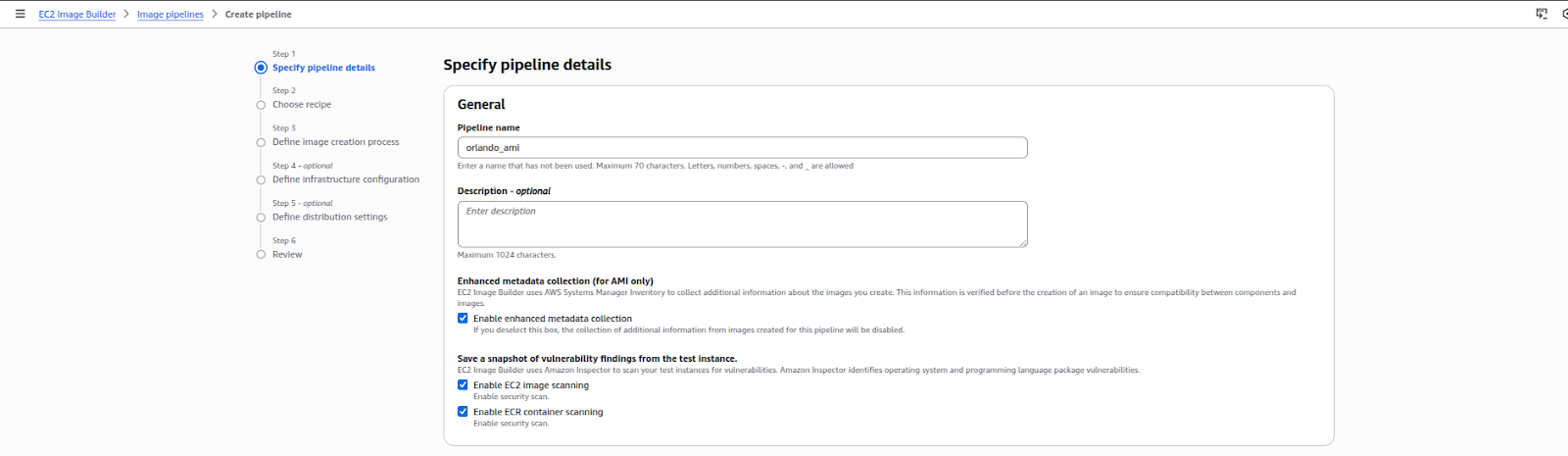
Step 1: Specify the details of the pipeline
- Open the EC2 Image Builder console
- To begin creating your pipeline, choose Create image pipeline
- In the General section, enter a name for the Pipeline name
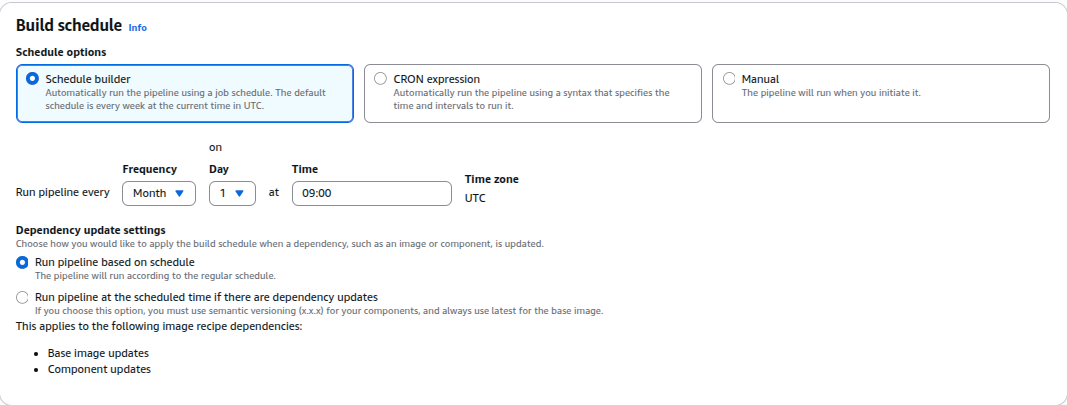
- In the Build schedule section, you can choose the type of scheduling you want to do
- For Dependency update settings, you can choose the Run pipeline at the scheduled time if there are dependency updates options. This setting causes your pipeline to check for updates before starting the build. If there are no updates, it skips the scheduled pipeline build.
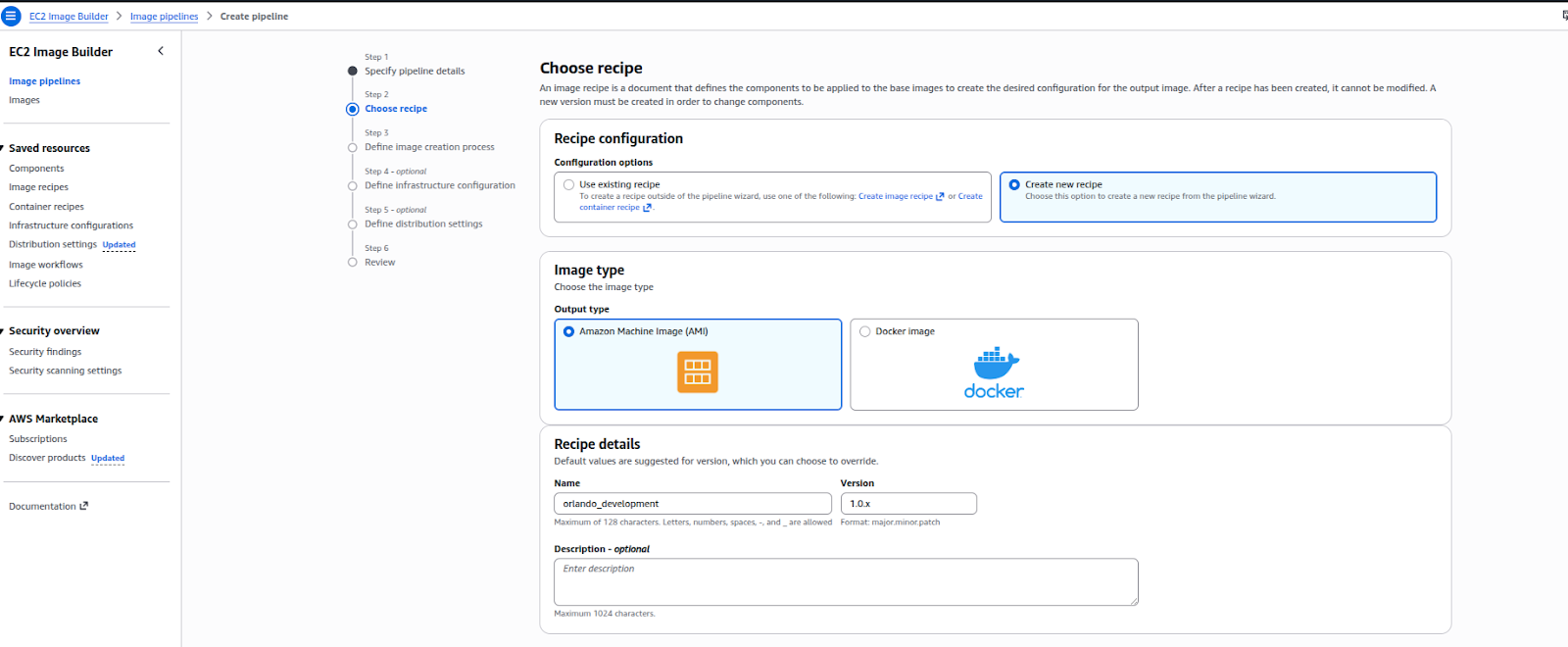
Step 2: Select a Recipe
- Choose “Create new recipe” in Image Builder (use existing recipe is the default)
- Select Amazon Machine Image (AMI) as the image type
- Name: type the name of your recipe here
- Use <major> for the version.. format (start with 1.0.0)
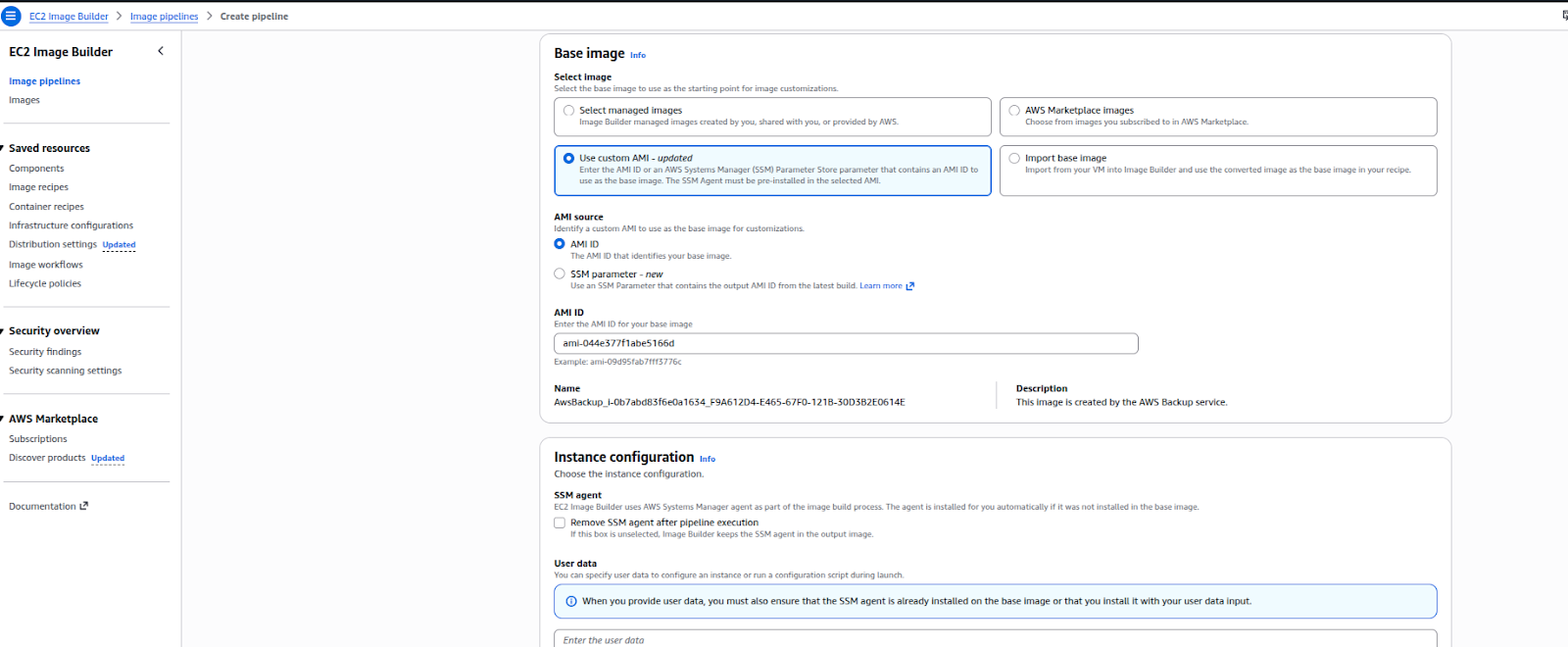
- Source image: choose Amazon Linux 2 x86 and leave the default settings
- Select the image name from the drop-down menu
- Auto-versioning: stick to the most recent OS version
- Instance configuration: leave User data empty and maintain the Systems Manager agent’s default settings
- Parts: Optional; to apply the most recent security updates for this tutorial, add update-linux
- “Update” is the filter. Choose “update-linux.” Add to recipe
- Reordering more than one component is optional
Step 3: Define image creation process
The image creation process in EC2 Image Builder is defined by workflows that determine the image creation, testing, and distribution process. Workflows in Image Builder determine the steps that the image creation process will follow in creating an image. For the image creation process, up to 10 workflows can be defined in the pipeline. Workflows can either be service default workflows for the standard image creation process or custom workflows that can be created by combining different image build workflows and test workflows that are either Amazon-managed or user-owned. The build workflow will define the steps in the image creation process from the base recipe, while the test workflows can be used to validate the image created in the build process, which can be run individually or in combination to run multiple tests in parallel, or can be skipped depending on the requirements. The distributed workflow will define the image distribution process to the required channels. An IAM role will be chosen to provide the permissions to the image creation process.
Step 4: Define infrastructure configuration – optional
Image Builder uses your AWS account’s EC2 instances to launch the images and run validation tests. The configuration settings for Infrastructure configuration are used for specifying the details for the infrastructure of the instances running in your AWS account.
In the Infrastructure configuration section, the default for the Configuration options is set to Create infrastructure configuration using service defaults. This creates an IAM role and instance profile for the build and test EC2 instances used for configuring your image. For more information regarding the configuration settings for Infrastructure configuration, see CreateInfrastructureConfiguration in the EC2 Image Builder API Reference.
Step 5: Define distribution settings
In the Define distribution settings section of the AWS EC2 Image Builder process, the distribution of the image created is defined based on a successful build and test process. This section of the process involves defining the AWS Regions where the image should be distributed and the AMI settings such as the name and description of the image and the permissions to be used when launching the image, as well as the option to share the image with other AWS accounts.
For this tutorial, we are using the default settings.
HashiCorp Packer
HashiCorp Packer remains a popular open-source alternative for multi-cloud image creation, offering flexibility and broad platform support.
Benefits include:
- Creating images for AWS, Azure, GCP, and VMware
- Defining images as code with HCL or JSON
- Storing configurations in Git
- Supporting provisioners like Ansible and Chef
- Easy integration into CI/CD pipelines
Best Practices for Managing Golden Images
- Use a clear naming convention, such as <purpose>-<os>-<version>-<date>
- Apply comprehensive tags for purpose, OS, version, date, team, environment, and compliance standards
- Establish a regular update schedule:
- Monthly patches
- Quarterly updates
- Immediate critical fixes
- Use AWS Config rules to ensure only approved AMIs are used in production
- Implement a fully automated pipeline with stages for:
- Building
- Testing
- Scanning
- Approval
- Distribution
- Registration
- Notification
- Integrate this pipeline with your CI/CD system to trigger builds for:
- OS updates
- Security patches
- Dependency changes
- Manual urgent updates
- Incorporate security scanning using tools like Amazon Inspector, AWS Security Hub, or third-party options
- Set up continuous assessment to identify new vulnerabilities
- Establish a lifecycle policy to retire old AMIs:
- Keep only the last three versions
- Retain monthly snapshots for one year
- Retain quarterly snapshots for three years
- Automatically deregister outdated AMIs while deleting associated snapshots to control costs