International
 Finland
 Bangladesh
Introduction
In the previous part, we looked at how we can combine Terraform with Github Actions to fully automate a deployment cycle in the AWS with minimal downtime and effort. In this part, we will see what the best practices in the industry are, when working with Terraform and GitHub Actions.
Best practices with terraform state management
The best practice with terraform is to store the state in a remote environment and avoid any local management. The best way is to store the state files separately for each environment and include different security measures to protect the files at rest as well as when the terraform workflow is underway.
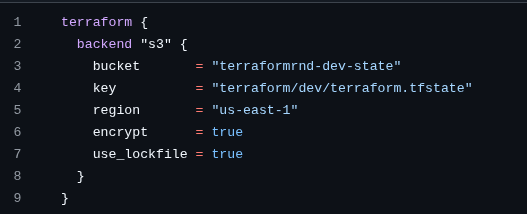
Here the backend is configured in such a way that the “encrypt” attribute helps to secure the state files at rest whereas the “use_lockfile” attribute helps to secure the state file when there is an active execution of the terraform workflow (init, plan and apply). When a terraform workflow is triggered, the use_lockfile attribute makes sure that the state at that instance in time is locked and no other simultaneous workflow triggers can run side by side.
This helps to prevent the state file from any corruption and makes sure that the other workflow can only go underway when the current one is done performing its duty.
We can test this by starting a terraform operation and stopping the pipeline midway. This will cause the state to be locked and when another workflow is triggered, operation cannot be performed. The statelock file is stored in the following way :

This protects the state file from being corrupted due to simultaneous operations.
Releasing the lock
We can release this lock by either deleting the lockfile from the S3 bucket or we can also safely do:
- terraform force-unlock 170d4ae1-139a-e53f-c46e-0bd4d5b05978
Directory based remote state management
Three different directories are created within the s3 bucket to store the remote states for all environments-dev,staging and prod.
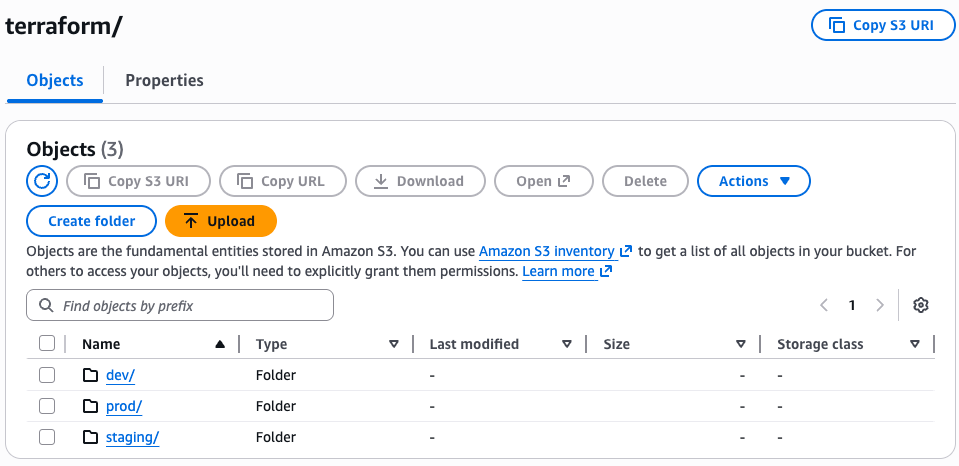
The state files for each of the environments are safe and separated. This ensures separation of concern and it is the best industry practice.
Another addition to security can be implementing MFA for the S3 bucket which makes sure that only the authorized individuals can access and modify the state files.
Rollback strategy for terraform state
Let’s say that when a terraform operation is completed, the state file somehow corrupted and the latest state is unusable. In this condition, we must be ready to rollback to the previous version of the state so that we can retrieve the last good state.
We can do this by allowing bucket versioning so that each version of the state file is stored in the S3 bucket as separate state files with version ID for each of them.
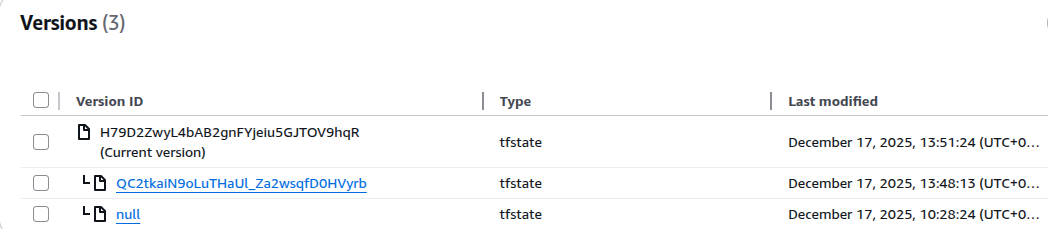
Now if we wish to go back to the previous statefile version, we can simply copy the last version of the state file and move it to replace the corrupted file in the bucket.
aws s3api copy-object \
–bucket terraformrnd-dev-state \
–copy-source terraformrnd-dev-state/terraform/prod/terraform.tfstate?versionId=QC2tkaiN9oLuTHaUl_Za2wsqfD0HVyrb \
–key terraform/prod/terraform.tfstate
This way we can best manage the state files in terraform ensuring security and reliability.
Drift Detection
Whenever a change is made in the current environment outside of the terraform code, such changes are known as drifts. In the premium version, drift detection is an automated feature in terraform but working with the free version requires some workarounds.
There needs to be a way to identify the changes made outside of terraform (from the AWS console itself) as terraform only considers the current state as the single source of truth. To implement this, another workflow file was created named terraform-drift.yml where the workflow was scheduled to run every 12 hours to detect if some drift had occurred. Then, if a drift is sensed, an email would be sent to the provided email address notifying this change.
terraform-drift.yml
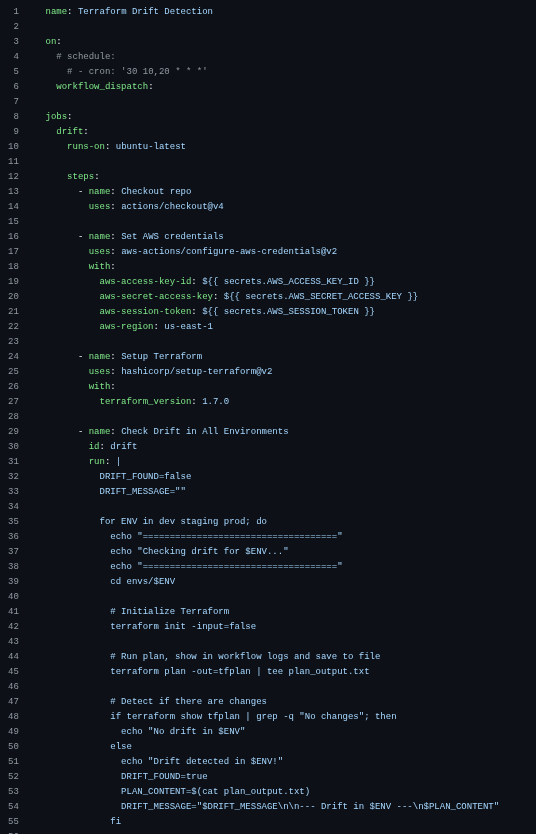
When using the free version, it is also recommended to run this workflow before any code changes are pushed to the repository so that we can be aware of the changes someone might have made outside of terraform. Such precautionary workflow triggers would help to avoid unwanted modifications of the environment to match the terraform code which is the single source of truth.
If any changes have been made outside of terraform then the “terraform plan” logs will show what changes were made and by detecting the content in the logs, an email is sent to the desired SMTP mentioning which branch had the changes made to it and the direct link to the workflow, so that we can view the changes without any hassle.
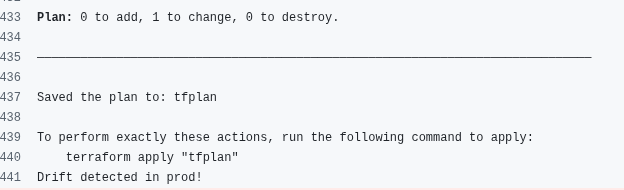
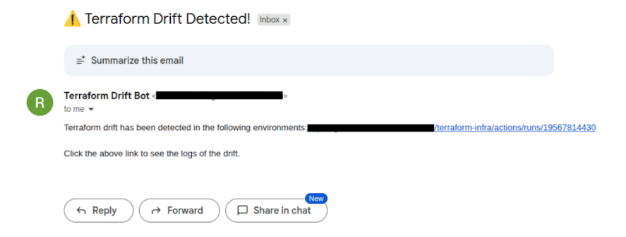
Upon this, we can either change the terraform code to match the new environment or if we don’t want to welcome the new changes, then we can simply push the terraform code to overwrite the changes.
Rollback Strategy for Terraform Code Using Version Control
The best practice for managing Terraform code rollback is to rely on version control (Git). Terraform itself does not provide a native rollback command, so the safest and most reliable approach is to revert the code to a previous known-good commit and re-apply it.
Code Rollback Using Git
Each Terraform change should be committed separately with clear messages describing the change. This ensures that every infrastructure state can be reproduced from a specific commit.
When a Terraform deployment causes issues such as downtime, misconfiguration or resource failure, we can rollback by restoring the code to a previous stable commit. There are two main approaches:
- Resetting to a previous commit (local / controlled environments)
This approach discards all changes after the stable commit. It is useful for local branches or non-shared environments. git reset –hard <stable_commit_hash>
- Reverting a commit (shared / production branches)
This approach creates a new commit that undoes the changes introduced by a faulty commit. It is safer for shared branches like main or prod.
git revert <bad_commit_hash>
Applying the Rollback
After reverting the code, we can simply trigger the CICD workflow to take the AWS environment back to the previous good commit version.
Terraform compares the current remote state with the rolled-back code and applies only the necessary changes to restore the infrastructure to its previous configuration.
Conclusion
In this blog, we learned the best industry practices when it comes to working with Terraform and GitHub Actions. With this approach, teams can manage cloud infrastructure more efficiently while reducing manual intervention and deployment risks.