International
 Finland
 Bangladesh

Create a Real-Time Clickstream Analytics Pipeline on AWS using Kinesis, Flink, and Lambda
With modern web applications, there are millions of user interactions occurring, such as clicks, searches, and page views. By processing these user interactions in real-time, organizations can gain insights into user behavior, identify unusual patterns, and even personalize the user experience.
In the following tutorial, a real-time clickstream analytics solution is developed using Amazon Kinesis Data Streams, Amazon Managed Service for Apache Flink, AWS Lambda, and DynamoDB. Amazon Managed Service for Apache Flink is a service which can be used to perform analysis using SQL on Kinesis Data Streams in real-time.
First let’s create the necessary resources. We will first create Kinesis Data Streams. In the AWS Management Console search bar, enter Kinesis, and click the Kinesis result under Services. Two streams will be created , the first stream will ingest incoming click events from a data source while the second stream will ingest the click stream data that has been sessionized into AWS Lambda.
Create Kinesis Data Streams
- Open AWS Console → Search Kinesis
- Open Data Streams
- Click Create data stream
- Create Kinesis Data Streams
- Open AWS Console → Search Kinesis
- Open Data Streams
- Click Create data stream
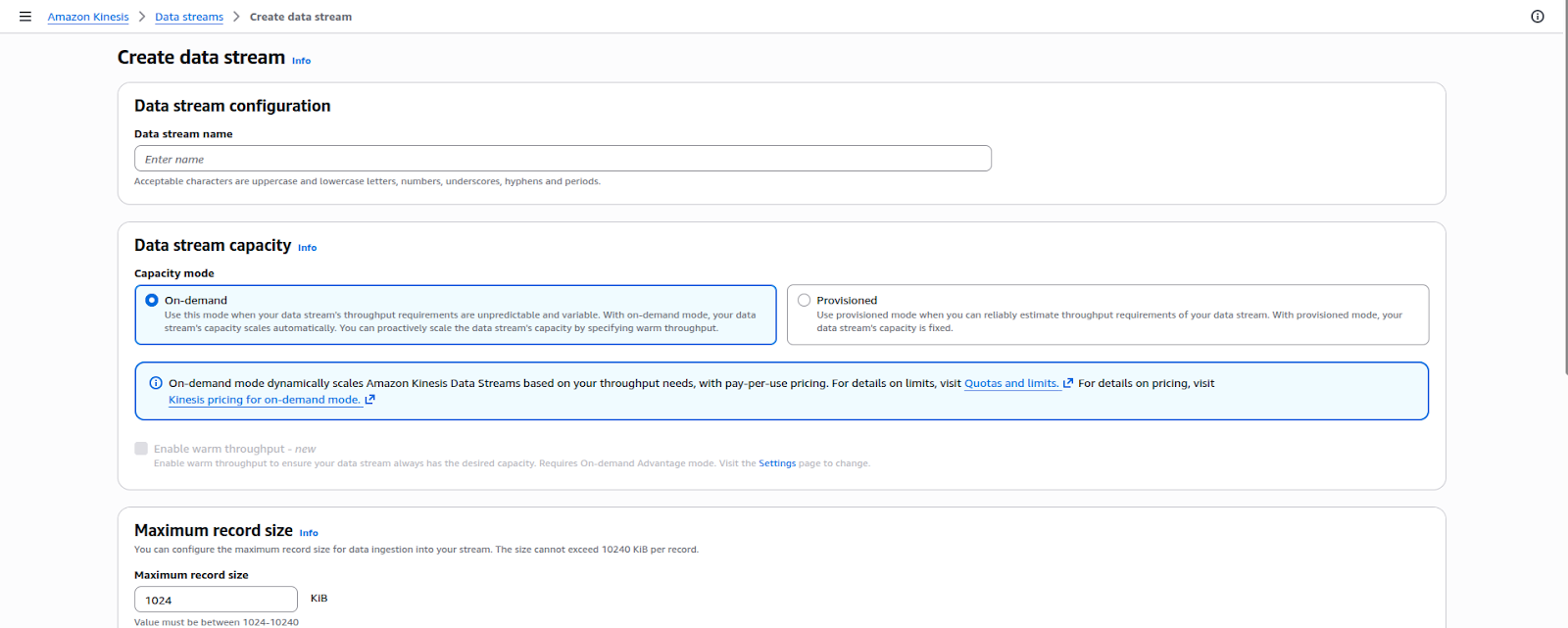
We will name the Kinesis streams as clickstreams and sessionstreams. Next, let’s create the DynamoDB table that will be used to store the sessions.
Create DynamoDB Table
- Open DynamoDB
- Click Create table and give an appropriate name to the table.
- Partition key
session_id (String)
Create Apache Flink Studio Notebook
Open Kinesis → Managed Apache Flink
- Click Studio notebooks
- Click Create Studio notebook
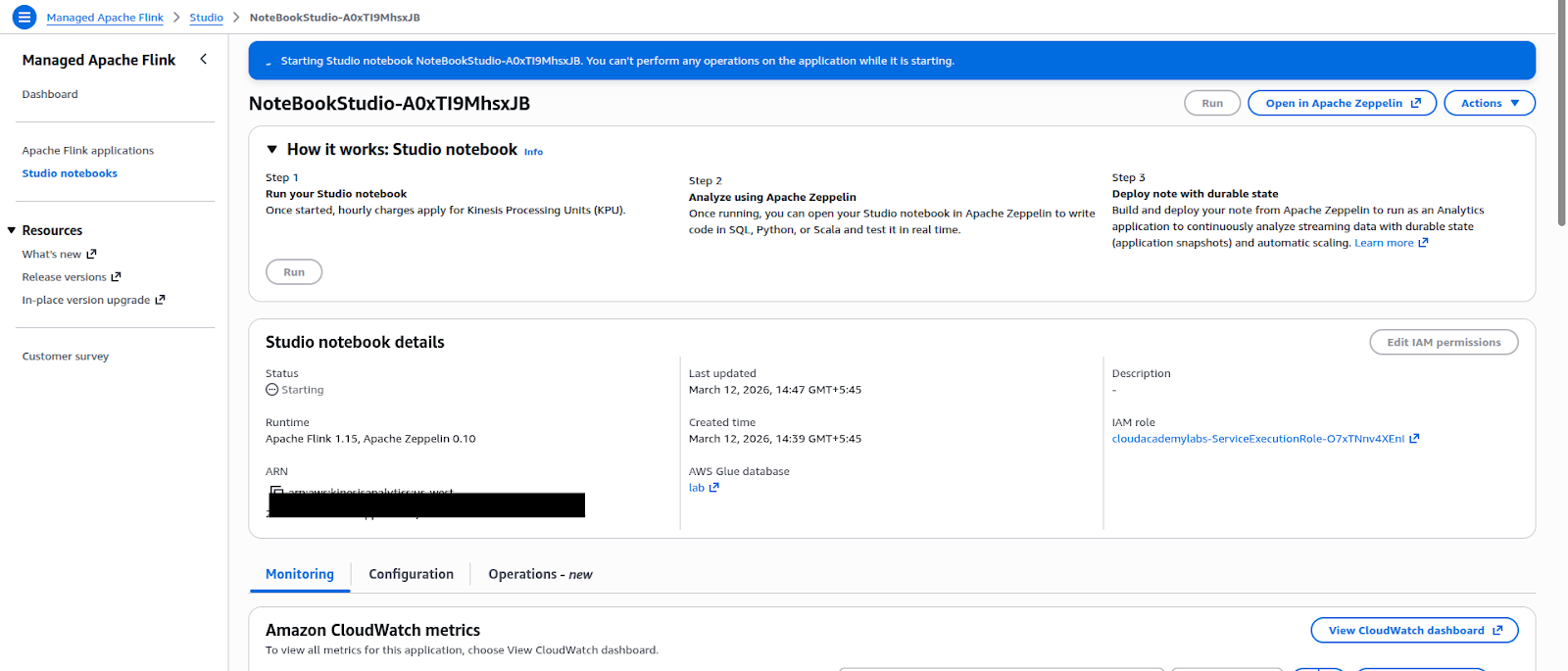
Now let’s start a Notebook.
Let’s go to Studio Notebooks and select clickstream-notebook. Now after clicking Run we will get the status of Running in the Notebook.
Create EC2 Instance for Data Simulation
We will now create an EC2 instance that will be used for data simulation. In order to launch an EC2 instance, users need to follow these steps:
Open Amazon EC2 under the Amazon Web Services console and click on the button that says launch instance. Enter the name of the instance as clickstream-simulator, select the operating system as Amazon Linux 2, and select the type of instance as t2.micro. Next, users will be prompted to select an existing key pair or create a new one. They will also be prompted to select the type of security group that will allow SSH access on port 22. Finally, users will click on the button that says launch instance to start their virtual server.
Now, let’s connect to the EC2 instance and a browser shell will open. We need to install awscli,
jq and envsubst in the instance for the simulation to work.
Simulate Real-Time Clickstream Data
Create a JSON template.
echo ‘{
“user_id”: “$USER_ID”,
“session_id”: “$SESSION_ID”,
“event_timestamp”: “$EVENT_TIMESTAMP”,
“event_name”: “$EVENT_NAME”,
“event_type”: “click”,
“device_type”: “$DEVICE_TYPE”,
“page_url”: “$PAGE_URL”,
“referrer”: “$REFERRER”
}’ > click_template.json
Now, let’s run the clickstream generator
DATA_STREAM=“clickstreams”
USER_IDS=(user1 user2 user3 user4 user5)
EVENTS=(checkout search category detail navigate)
DEVICES=(desktop mobile tablet)
PAGES=(/home /search /product /category /checkout)
for i in $(seq 1 100); do
echo “Iteration: ${i}“
export USER_ID=“${USER_IDS[RANDOM%${#USER_IDS[@]}]}“
export SESSION_ID=“session_$((RANDOM%10000))”
export EVENT_NAME=“${EVENTS[RANDOM%${#EVENTS[@]}]}”
export DEVICE_TYPE=“${DEVICES[RANDOM%${#DEVICES[@]}]}”
export PAGE_URL=“${PAGES[RANDOM%${#PAGES[@]}]}”
export REFERRER=“google.com”
export EVENT_TIMESTAMP=$(($(date +%s) * 1000))
JSON=$(cat click_template.json | envsubst)
aws kinesis put-record \
–stream-name $DATA_STREAM \
–data “${JSON}“ \
–partition-key “$USER_ID“ \
–region us-west-2
sleep 1
done
An example of generated event is:
{
“user_id”: “user3”,
“session_id”: “session_4582”,
“event_timestamp”: “1710001234567”,
“event_name”: “search”,
“event_type”: “click”,
“device_type”: “mobile”,
“page_url”: “/search”,
“referrer”: “google.com”
}
Process Clickstream Using Apache Flink SQL
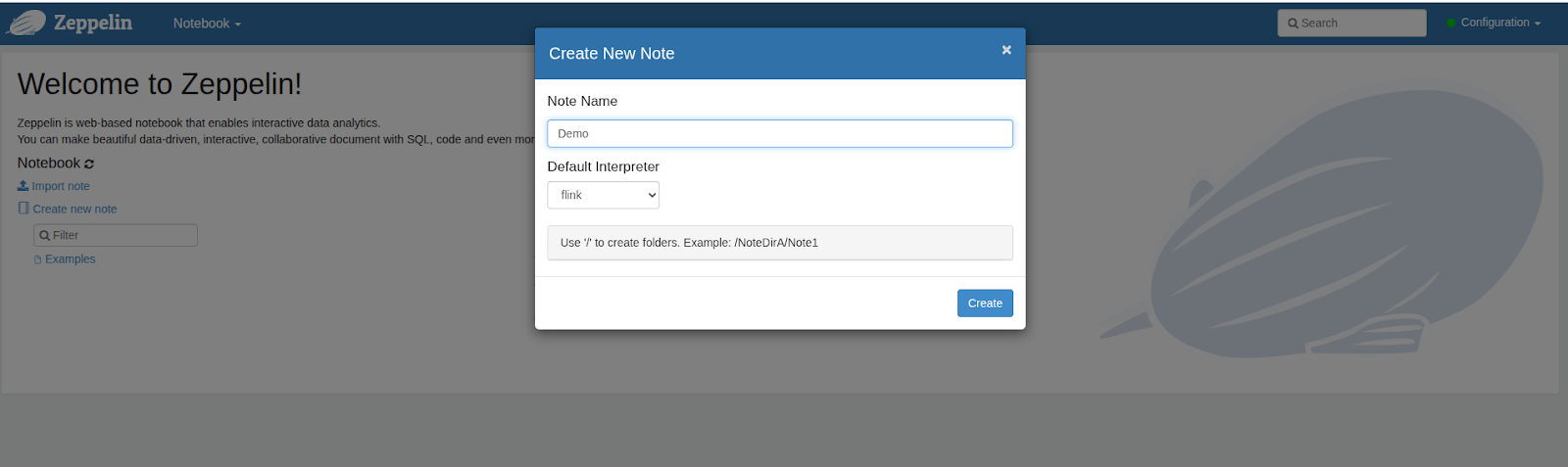
Now, let’s open the notebook and choose the Open in ‘Apache Zeppelin’ option. A window will open and we will be prompted to name the note.

Create Tables for Kinesis Streams
To create tables, we will be running the following SQL commands:
%flink.ssql(type = update)
DROP TABLE IF EXISTS click_stream;
CREATE TABLE click_stream (
user_id STRING,
session_id STRING,
event_timestamp BIGINT,
event_name STRING,
event_type STRING,
device_type STRING,
page_url STRING,
referrer STRING,
event_time AS TO_TIMESTAMP(FROM_UNIXTIME(event_timestamp/1000)),
WATERMARK FOR event_time AS event_time – INTERVAL ‘5’ SECOND
) WITH (
‘connector’ = ‘kinesis’,
‘stream’ = ‘clickstreams’,
‘aws.region’ = ‘us-west-2’,
‘scan.startup.mode’ = ‘latest-offset’,
‘format’ = ‘json’
);
DROP TABLE IF EXISTS session_stream;
CREATE TABLE session_stream (
user_id STRING,
session_timestamp BIGINT,
session_time TIMESTAMP(3),
session_id STRING,
event_type STRING,
device_type STRING,
page_url STRING
)
PARTITIONED BY (user_id)
WITH (
‘connector’ , ‘kinesis’,
‘stream’ , ‘sessionstreams’,
‘aws.region’ , ‘us-west-2’,
‘format’ , ‘json’
);
View Clickstream Data
To view the clickstream data, we will be using the following SQL command:
%flink.ssql
SELECT * FROM click_stream LIMIT 10;
Example output:
user3 | session_4567 | search | mobile | /search | google.com
user2 | session_3321 | detail | desktop | /product | google.com
Identify Session Boundaries
We will use these SQL commands to Identify Session Boundaries:
%flink.ssql(type = update)
INSERT INTO session_stream
SELECT
user_id,
TO_UNIXTIME(session_start) * 1000 AS session_timestamp,
session_start AS session_time,
user_id || ‘_’ || CAST(TO_UNIXTIME(session_start) AS STRING) AS session_id,
‘session_summary’ AS event_type,
device_type,
last_page AS page_url
FROM click_stream
MATCH_RECOGNIZE (
PARTITION BY user_id
ORDER BY event_time
MEASURES
FIRST(event_time) AS session_start,
LAST(page_url) AS last_page,
LAST(device_type) AS device_type
ONE ROW PER MATCH
PATTERN (STRT NEXT*)
DEFINE
NEXT AS NEXT.event_time <= LAST(event_time) + INTERVAL ’10’ SECOND
);
Here, a new session starts if user inactivity is greater or equal to 10 seconds.
Generate Session IDs
Now we will also keep page_url. If the time between two events from the same user exceeds 10 seconds,a new session is created.
%flink.ssql
SELECT
*,
user_id || ‘_’ ||
CAST(
SUM(new_session) OVER (
PARTITION BY user_id
ORDER BY event_time
) AS STRING
) AS derived_session_id
FROM
(
SELECT *,
CASE
WHEN event_timestamp – LAG(event_timestamp)
OVER (PARTITION BY user_id ORDER BY event_time)
>= (10 * 1000)
THEN 1 ELSE 0
END AS new_session
FROM click_stream
)
WHERE new_session = 1;
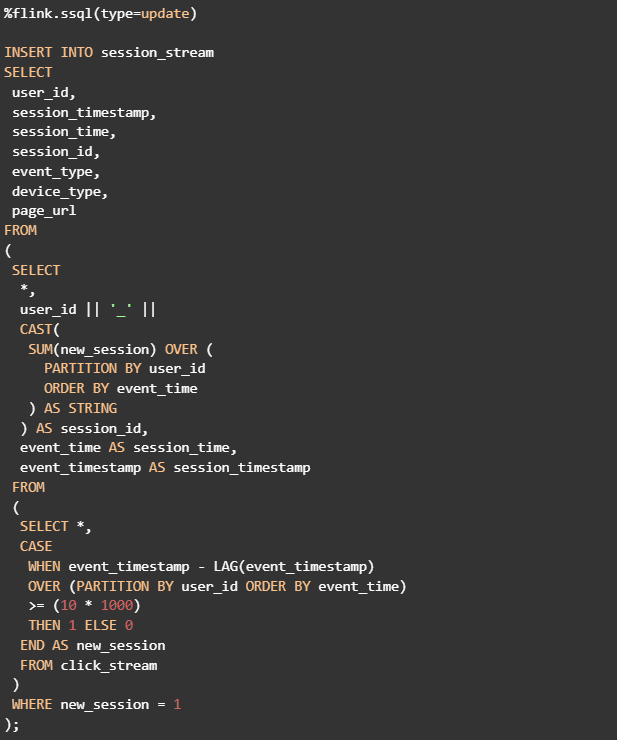
Write Sessions to Kinesis Session Stream
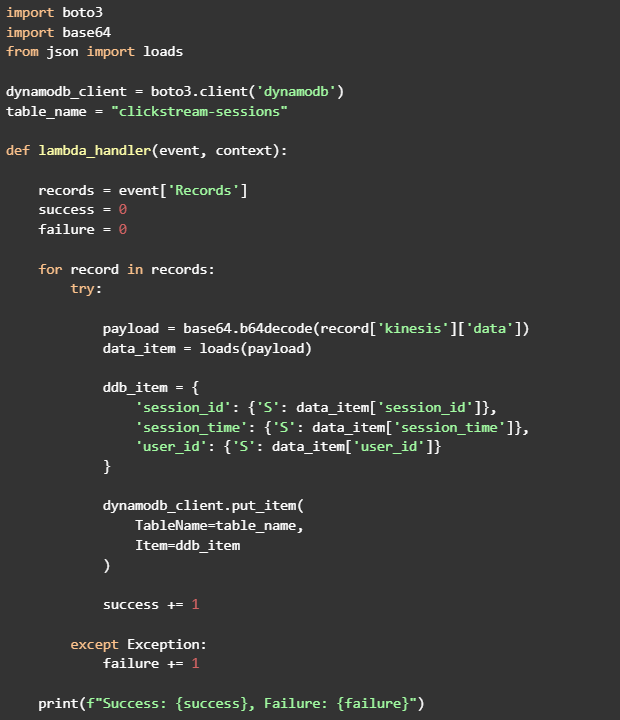
Create Lambda Function to Store Sessions
Now let’s use Lambda Function to store the sessions.
The Lambda function will need AmazonKinesisReadOnlyAccess, AWSLambdaKinesisExecutionRole and AmazonDynamoDBFullAccess IAM permission.
Lambda code to accomplish this:
Add Kinesis Trigger
Inside an AWS Lambda function, Select Add a Trigger, select Kinesis as the Source, and select the stream named sessionstreams. Keep the Batch size at its default value and click Add to associate the trigger with the Lambda function.
So, in this guide we created a full real-time streaming analytics pipeline on AWS by using Amazon Kinesis Data Streams to ingest raw click events, Amazon Managed Service for Apache Flink to process and sessionize them, and AWS Lambda to store the processed session data in Amazon DynamoDB. Combining these services allows you to manage unbounded, high-velocity data streams, apply real-time SQL transformations, and store the results for use in applications or downstream analytics. This practical process demonstrates how AWS facilitates scalable, serverless, and event-driven architectures for real-time data processing, offering operational simplicity and flexibility.